You.com supports the integration of your Microsoft OneDrive, allowing the selection of one or more files for chats and agents.
Typically a user connects their OneDrive ahead of selecting files when chatting or building an agent, however, if the connection is not configured ahead of time You.com will prompt the user to go through the connection steps as outlined below.
Navigate to the integrations page by clicking on your name at the bottom of the left menu bar, then click Integrations

Click on Connect
Follow the standard OneDrive connection steps and grant You.com access to your drive
|
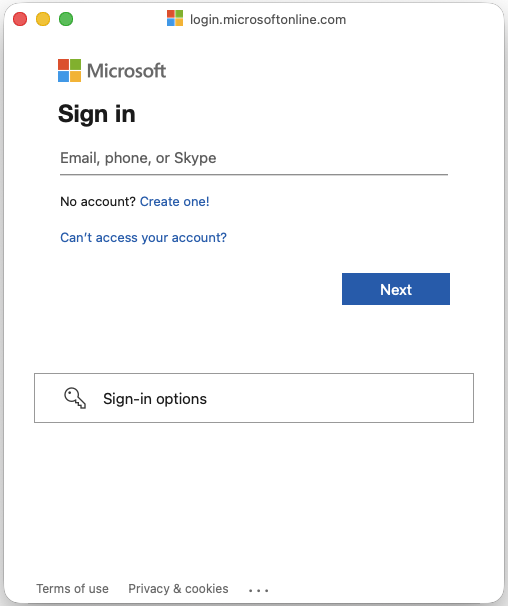
Add in your email address
Click Next
|  |
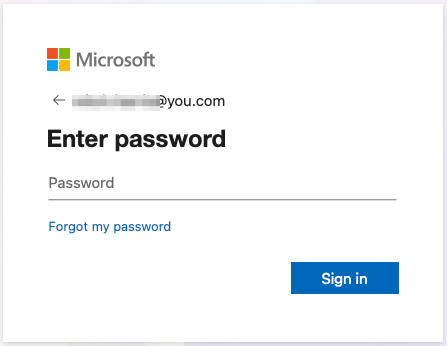
| Enter your password
Click Sign in
|  |
|
You will be presented with a permissions screen, this may require the support of your administrator.
Follow the instructions and Click Allow
|

Your Onedrive is now connected.
Disconnect at any time by clicking on the Disconnect button