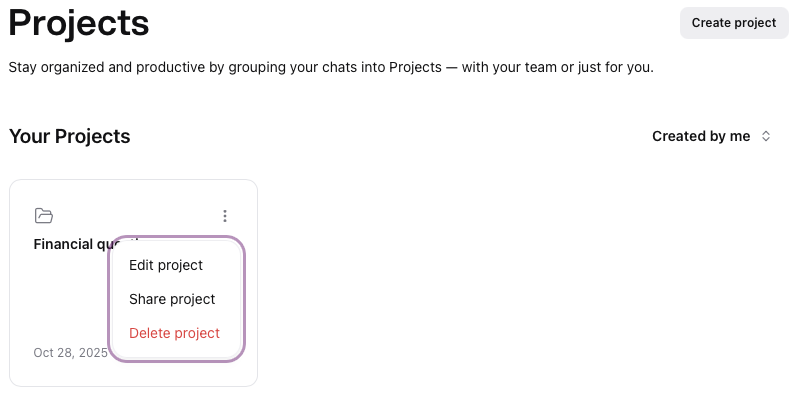
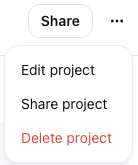
Projects can be shared either from the project tile within the project listing or from within the project itself.
Note that if your administrator has disabled Public Sharing of projects, the option to share with 'Anyone with Link' will be disabled. To share a project internally with one or more specific internal users use the custom option below and select the 'Anyone with Link' option at the end of your team list, set to view and copy the link.
Notes on co-managing
Project managers have the ability to modify all aspects of the project including...
- Project name & description
- Included chats
- Sharing settings
Project Listing
|
In the project listing, mouse over the top right corner of the project tile to reveal the options menu , click to display the options. , click to display the options.
Click on Share project
|  |
Project View
|
Within the project view, click the options menu  , click to display the options. , click to display the options.
Click on Share project
|  |
Initial Sharing Settings
|
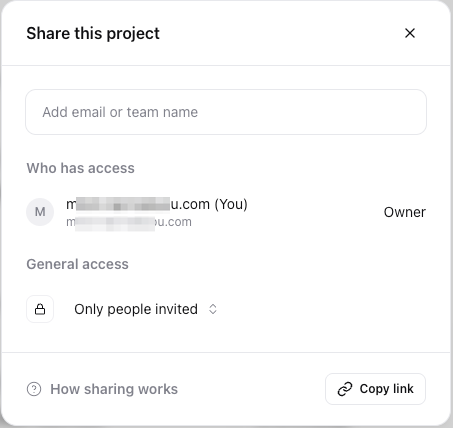
By default, Projects are private, sharing access is broken down into General Access and Specific Team and individual access.
As the owner of the agent you can choose either style of setting or a combination to meet your needs, for example you could share manage access with specific teams within your organization and view access to the entire organization
|  |
General Access settings
|
By default General access is limited to Specific individuals and teams invited.
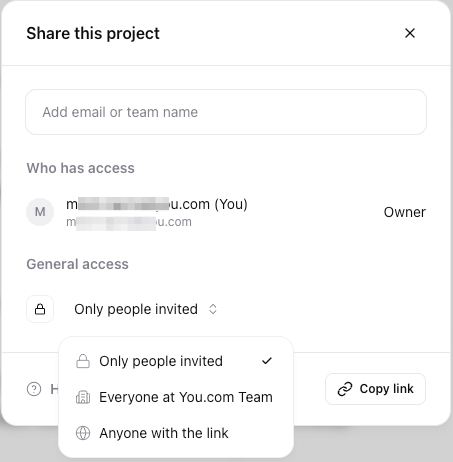
Clicking on the drop down allows the selection of the entire team (which means the project will appear in the Shared with me drop down, found on the top right of the screen).
|  |
|
Where Anyone with the link is selected, click on the Copy Link button to capture the URL.
Note: If your organization's administrator has allowed it, you may share this URL with individuals outside of your organization who have their own You.com account. The URL will not work for anyone without a You.com account.
|  |
Sharing Projects with Individuals or teams
|
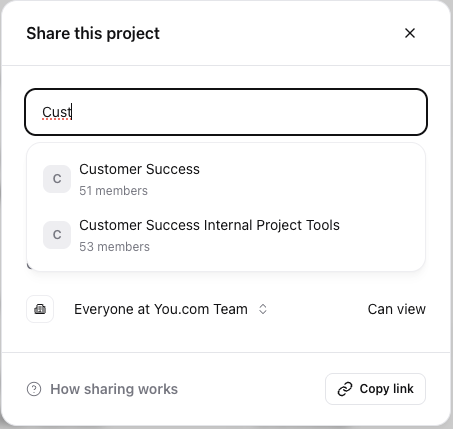
To share your project with others start typing an individual's or team name in the search bar at the top of the Project sharing window
Users and Teams that match the current search criteria will be displayed.
Click on the user or team to add them to the access list
|  |
| |
| Initially the user or team will be set to Can view - click on the drop down to switch to Can manage | 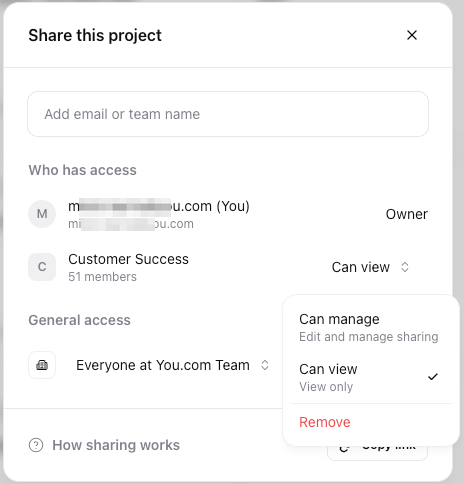 |
| |
| Repeat this process to add more individuals and teams |