When using the You.com chat interface or an agent the user is able to configure whether and how web search is performed in relation to their query.
Chat Experience
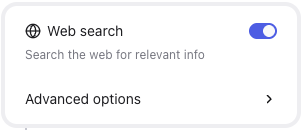
Chat users have a quick option to disable web search and also the ability to open the advanced web settings.
Click on the magnifying glass 

|
The search pop up will appear
Click on the Web search toggle to disable web search
Click on Advanced options to configure more complex search options
Or click outside of the pop up to return to the prior screen
|  |
Agent Experience
| When creating or editing an agent the user can either click on the Web search blue On button or Manage Sources | 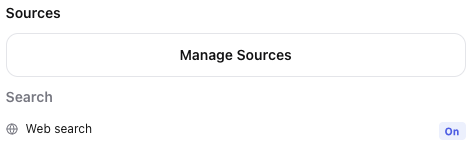 |
Disabling Web search
|
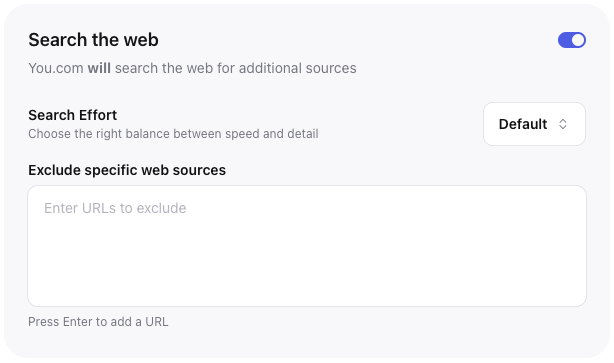
To disable a broad web search click on the Search the web toggle
Note: Any URLs which are added with Search the web disabled WILL be searched. This functionality allows the user to configure their chat or agent to only look at specific locations only.
|  |
| |
| The Search the web option will become greyed out. Click on the toggle a second time to re-enable search |  |
Configuring Search Effort
|
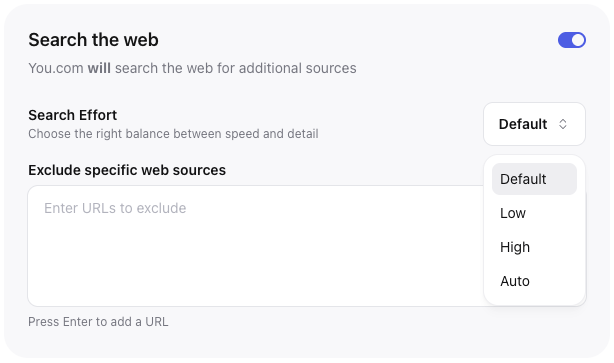
Configuring Search Effort allows the user to balance speed and depth of response, the default setting will use the main setting for the LLM or advanced agent (for example if Advanced Research & reasoning is enabled, the default is High).
The user can select Low, High or Automatic the latter being where the platform determines the search depth based on the request made.
|  |
Adding specific URLs
| Add links to key sites that You.com is required to search, you can add up to 20 urls (a total of 20 for files and urls combined) | 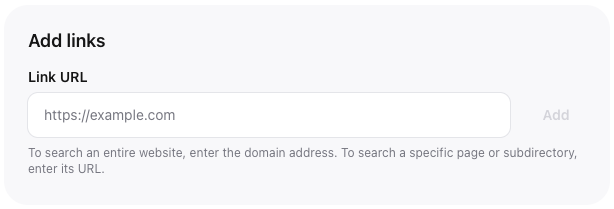 |
| |
|
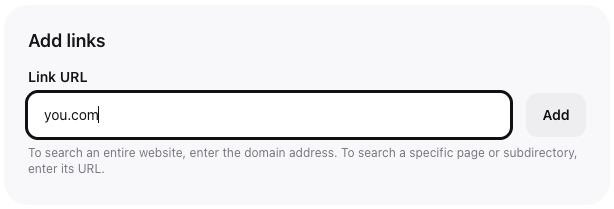
Type in the domain or page of interest
Click Add
|  |
| |
|
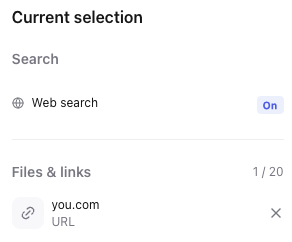
The selected URL will appear in the Current Selection bar on the right hand side of the sources window.
Remove a URL by clicking the X to the right of the link
|  |
| |
Excluding one or more URLs
|
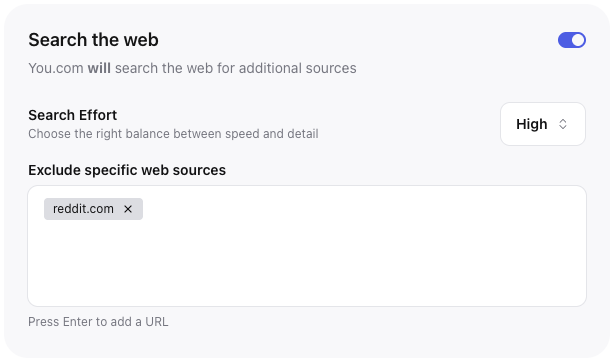
To explicitly exclude a website/domain from your search enter the domain and hit return.
To remove an excluded domain click on the X on the right of the chip
|  |
Note: Don't forget to click on Save & close to save your changes and return to either your chat or agent configuration window