When chatting with an LLM or creating a Custom Agent You.com provides the option to add one or more files which can be used as templates or data for use by the LLM in responding to your query. Files can be uploaded directly from your local machine, Google Drive and OneDrive.
The PRO plan supports the upload of 10 files /25MB, the Max and Enterprise plans support 20 files / 50MB. When uploading files the UI provides an indication of the storage used and also an estimation of the context used.
Many file types are supported, the last types can be found here.
For Google Drive and One Drive you will require valid access credentials which will you to connect to your drive. Detailed information on how to integrated with Google and One drive can be found at the following links...
It is recommended to make these connections before starting chatting, but they can be configured on the fly during a chat session if needed.
To add files to your chat thread click on the paper clip  attach attach |  |
|
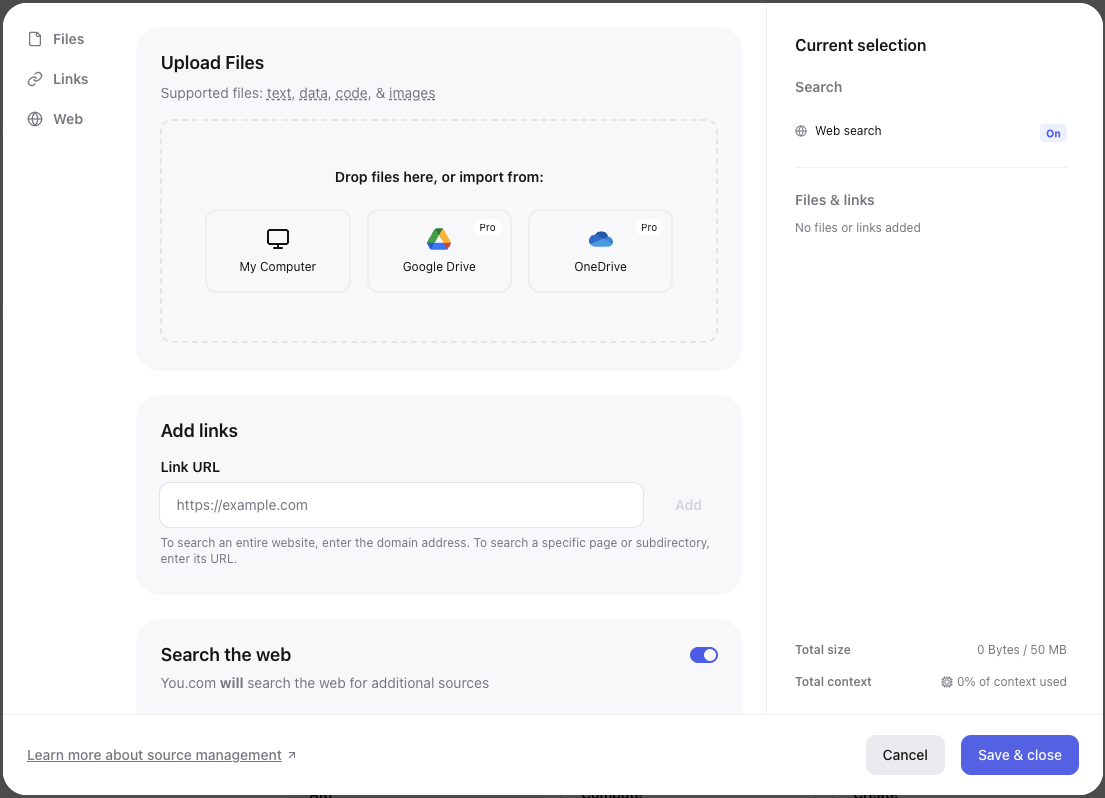
For files from your local machine either click on the My Computer tile  or drag and drop files to import or drag and drop files to import
For Google Drive and OneDrive click on the associated tile, navigate and select each of the files you require.
|  |
|
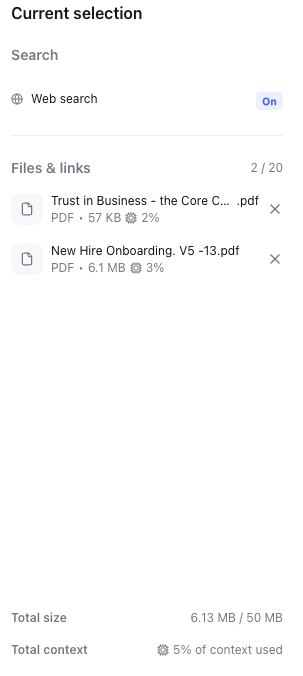
The selected files will be uploaded and displayed in the right hand panel of the advanced sources panel
The total MB and context used vs the plan allowance will be displayed. If either limit is exceed the window will show an error.
In this example screenshot the 2 files take up 6.13MB and 5% of the Enterprise context.
|  |
| |
| Once you have added all the required files for your chat (which may come from all 3 sources) click Save & close to return to the chat window |
|
The chat window will confirm the number of sources available to the chat session
|  |
Note: Attached files and any other advanced source configuration remains in place throughout a chat thread, so it is possible to use/reference those file is subsequent questions/responses in the thread
Removing files from a chat
To remove source files from a chat click on the paper clip and click the X associated with each file to be removed, click Save & close to return to the chat window.