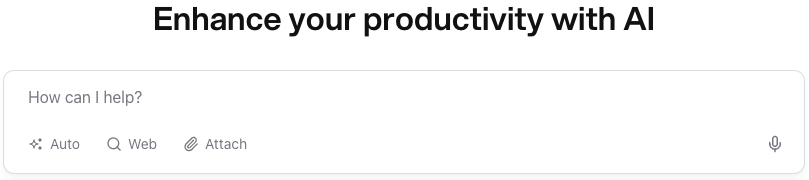
The chat page is the default when logging in to You.com, you are presented with the main chat dialog box followed by your projects and Agents.
From anywhere else in the UI you can click on New Chat at the top of the left hand navigation bar or use the keyboard short cut command-K  K K |  |
The dialog box will default to the Auto mode, which means that You.com will determine which of the available models to use based on your query. For more information on modes and available models click here.
Optionally you can select Web and File sources.
Either type in your query then click the blue execute arrow 
or click the mic icon  to dictate your query, at the end of your dictation click the mic
  again, edit the generated text if needed then click the blue execute arrow or hit return.
The UI will update showing your query and generate a response.
Follow up queries
Once the response has been generated you have the option to ask follow up questions or ask for refinement, for advanced users you are able to switch models or modes for each subsequent query. Continue to ask questions until you have your desired response.
Recommendation: To ensure you have the full available context for a new train of thought/thread, we recommend that you start a new chat, unless you want the LLM to use the prior context in its response.